The feedback we received
A user of the Seating Chart Generator sent us feedback through the form on the site. When seats are fixed, they stay visible on the draw screen, so the result looks as if it was arranged in advance. The suggestion was to leave those seats empty and show only the result after everything has shuffled.
We checked, and it was exactly as described. During the countdown the other seats shuffled names quickly, but the fixed seats stood still with a name and a Fixed mark.
Setup and presentation are now separate views
On November 14 we first added a switch on the Rules tab called Hide fixed seats and the rule check while presenting. Later the same day we changed the approach: you prepare and check the chart in the setup view, and the class sees the presentation view. That switch is gone, and the presentation view does its job.
The setup view is the settings screen you already know, and a strip has been added at the top. The changes to how you edit seats are described under Other additions below. Settings tabs, fixed-seat marks and the rule check are all there. The presentation view leaves out the settings tabs, fixed-seat marks, rule check and editing tools.
How to use it, step by step
- In the setup view, set the roster, desks and rules, press Seat the class and check the chart.
- Press Open presentation view.
- In the presentation view, press Seat the class.
- The chart is revealed.
- When you are done, press Back to setup.
Check the chart in the setup view first. The Fixed mark and the rule check bar are visible, so you can seat the class again or use Swap two seats while you check.
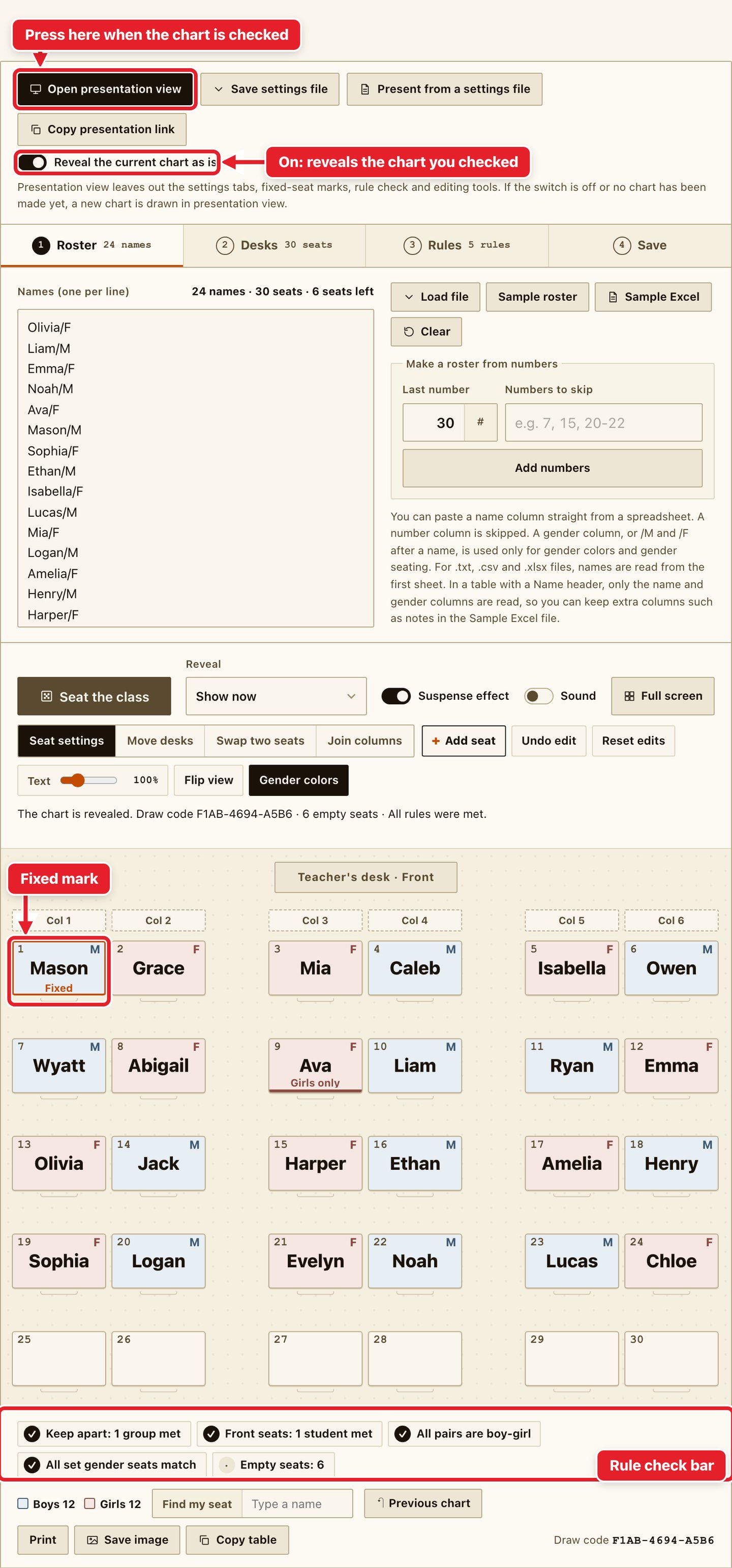
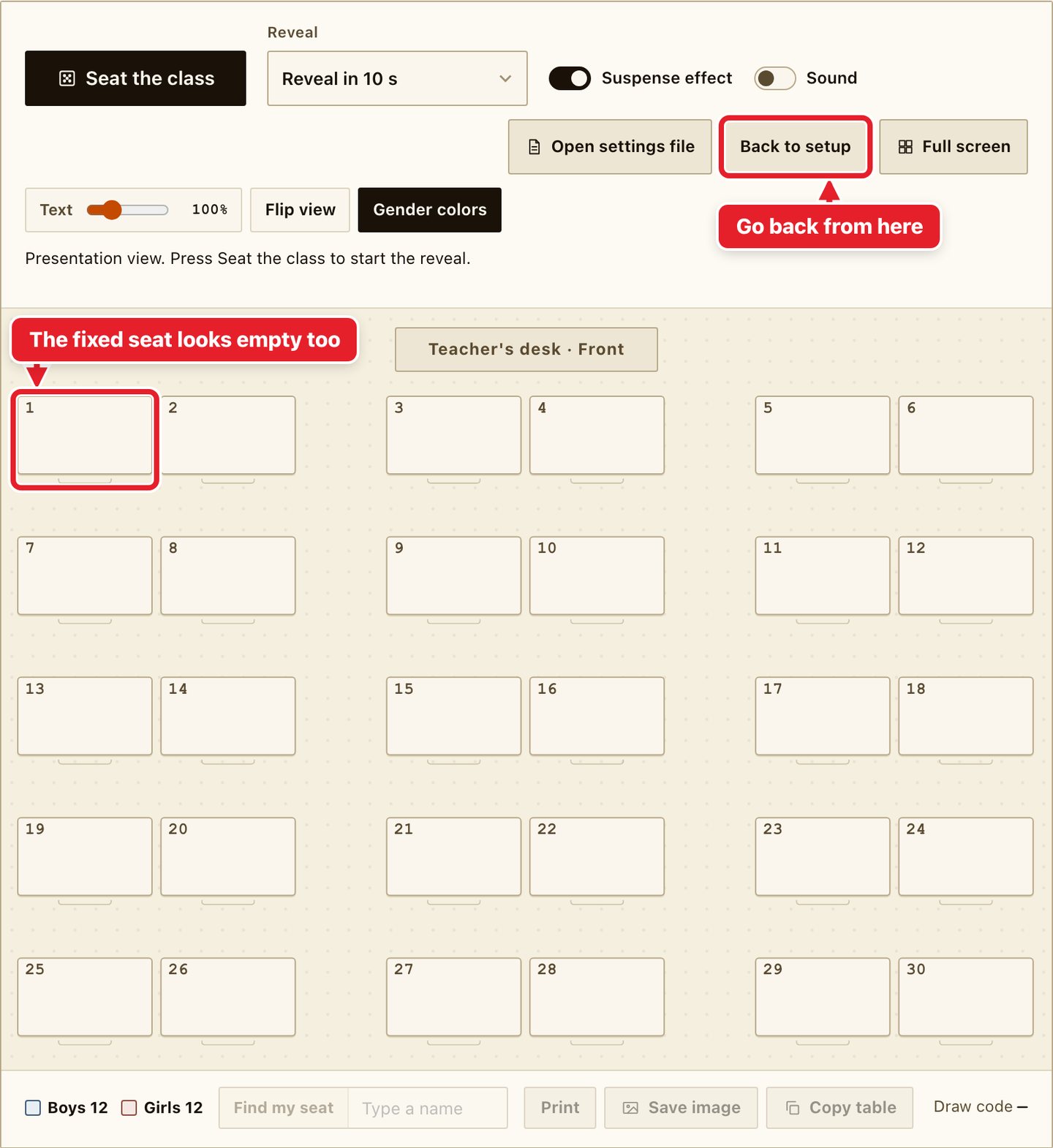
When the chart is ready, press Open presentation view at the top of the settings panel. The tool switches to full screen, and the settings panel and the editing tools disappear. The names you seated are covered, and the fixed seat looks like an empty desk too.
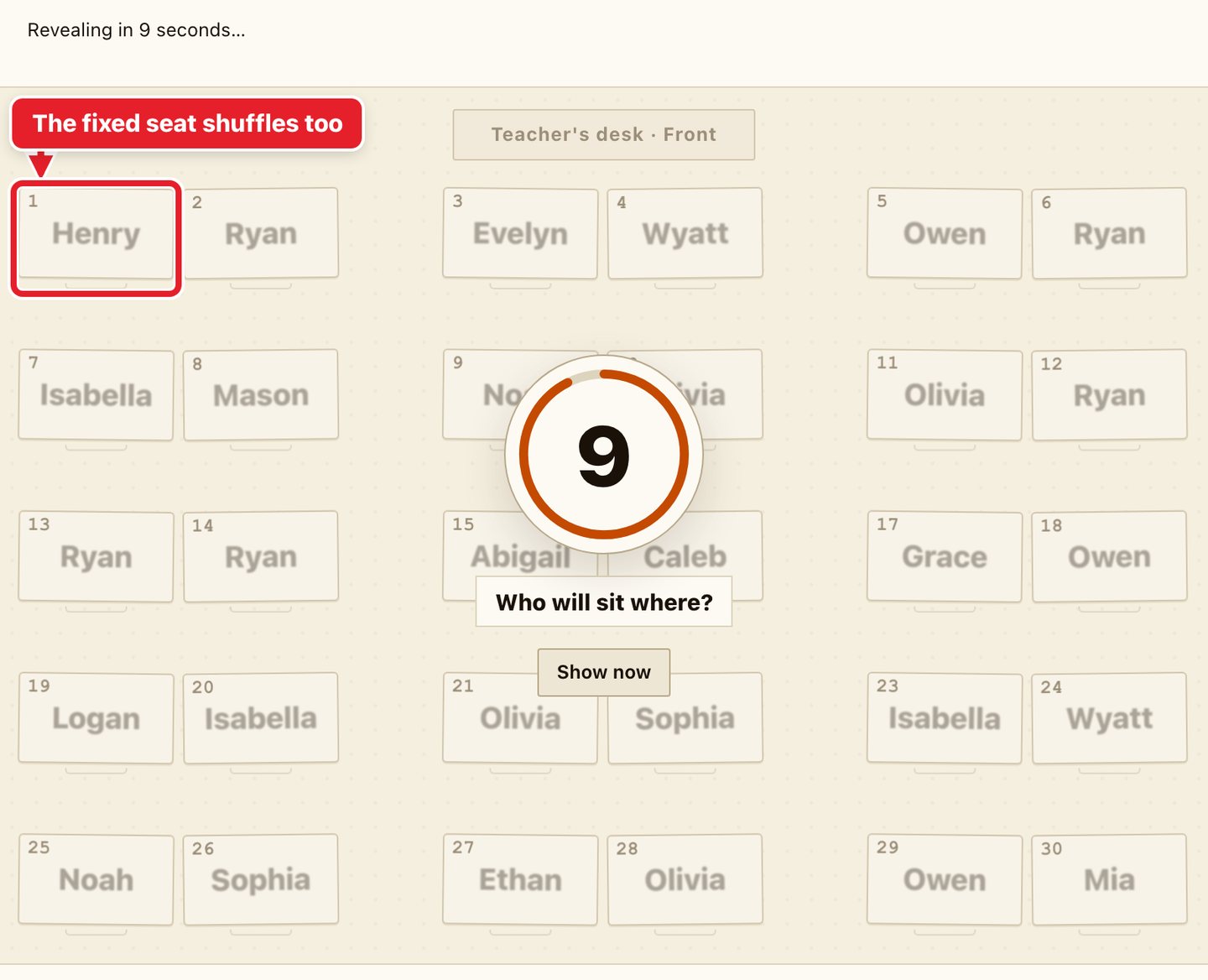
Press Seat the class in the presentation view to start the reveal. During the countdown the fixed seat shuffles names with every other seat.
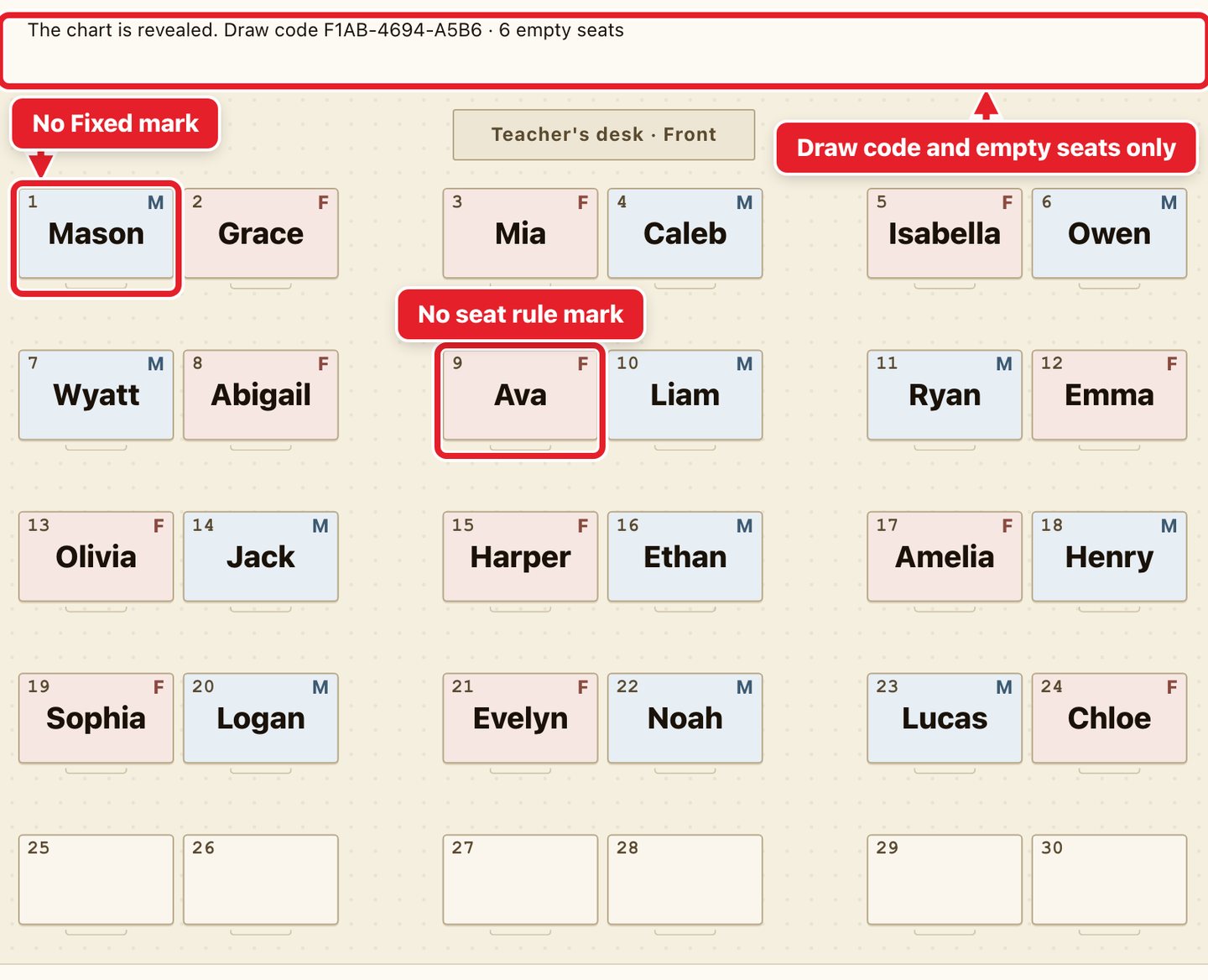
The revealed chart has no Fixed mark, no seat rule mark and no rule check bar. The status line shows only the draw code and the number of empty seats. The student you fixed still sits in that seat.
This is the same chart in the setup view. The Fixed mark and the seat rule mark are visible, and the rule results appear in the status line and the check bar.
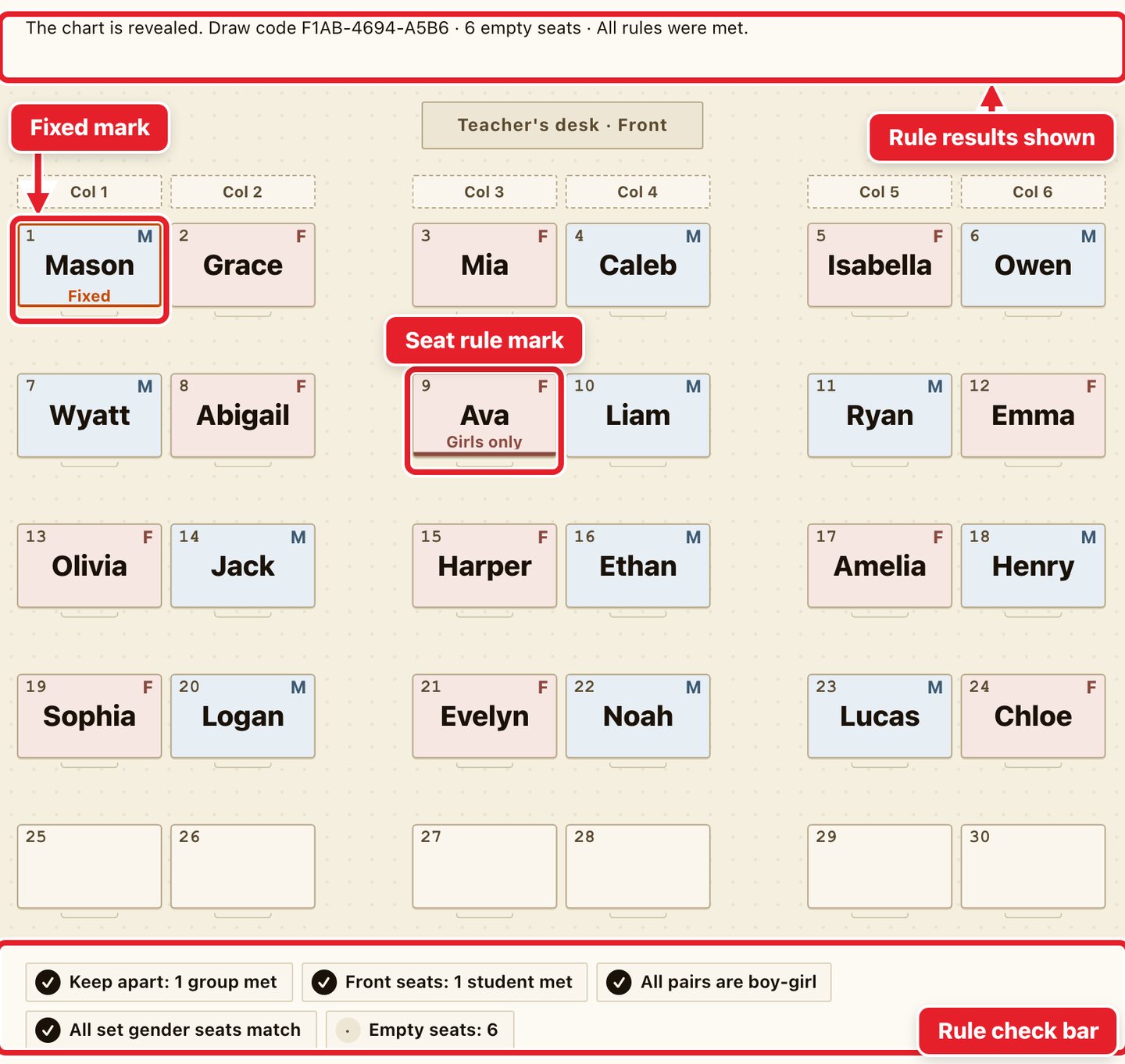
After the reveal, press Back to setup to return. You cannot go back while a countdown or a reveal in turn is still running. Pressing Esc only leaves full screen, and the presentation view stays.
The switch Reveal the current chart as is, on the strip, is on at first. With it on, the first time you press Seat the class in the presentation view, the chart you checked in the setup view is revealed as it is, including seats you swapped by hand and the same draw code. With it off, a new chart is drawn in the presentation view. Either way, pressing Seat the class again after a reveal draws a new chart.
Presenting straight from a file
You can prepare before class and open the presentation view in class without passing through the setup screen.
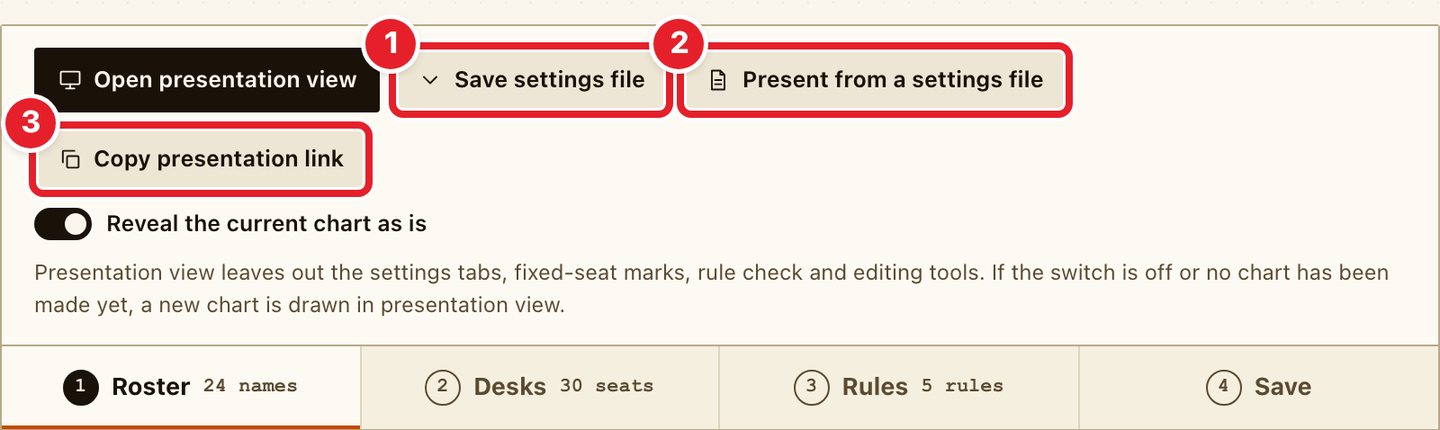
- When the chart is ready, press Save settings file (1) to download a file. It holds the roster, desks, rules, fixed seats and the chart you made.
- In class, choose that file with Present from a settings file (2), and the presentation view opens right away.
- On the computer and browser you prepared with, you can also open the link you get from Copy presentation link (3). A page opened with this link starts in the presentation view, without the setup screen. It does not switch to full screen by itself, so press Full screen yourself.
- If you open the link on another computer, load the file with Open settings file in the presentation view.
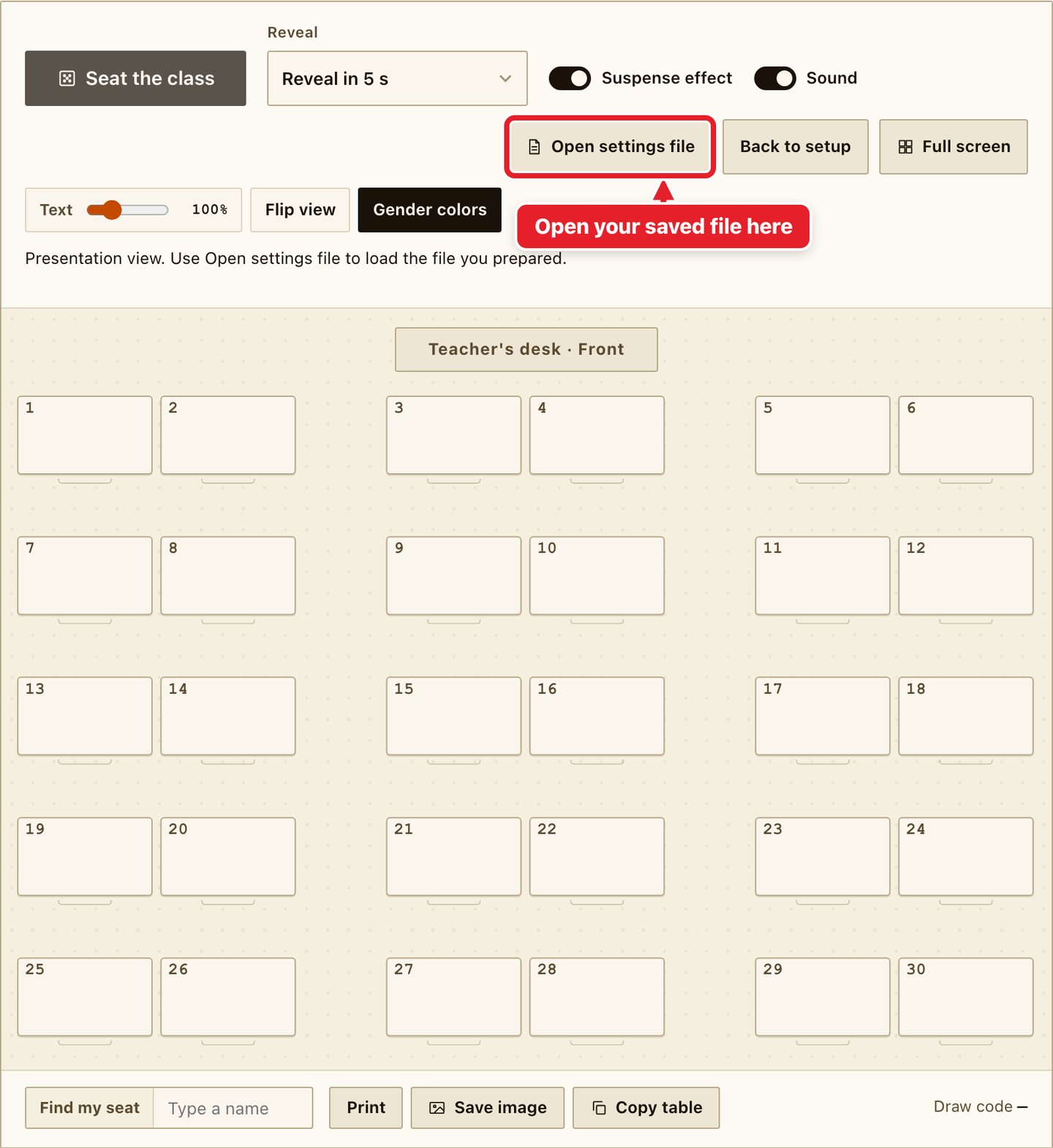
Setup view and presentation view compared
| Item | Setup view | Presentation view |
|---|---|---|
| Settings tabs (Roster, Desks, Rules, Save) | Shown | Not shown |
| Fixed-seat mark and seat rule mark | Orange border and Fixed mark, with the seat rule shown on the desk | Not shown |
| Rule check bar | Shown under the chart | Not shown |
| Editing tools | Shown above the chart | Not shown |
| Status line after a reveal | Draw code, empty seats and rule results | Draw code and empty seats only |
| Print and saved image | Fixed seats drawn with a different border | Drawn like any other seat |
Other additions
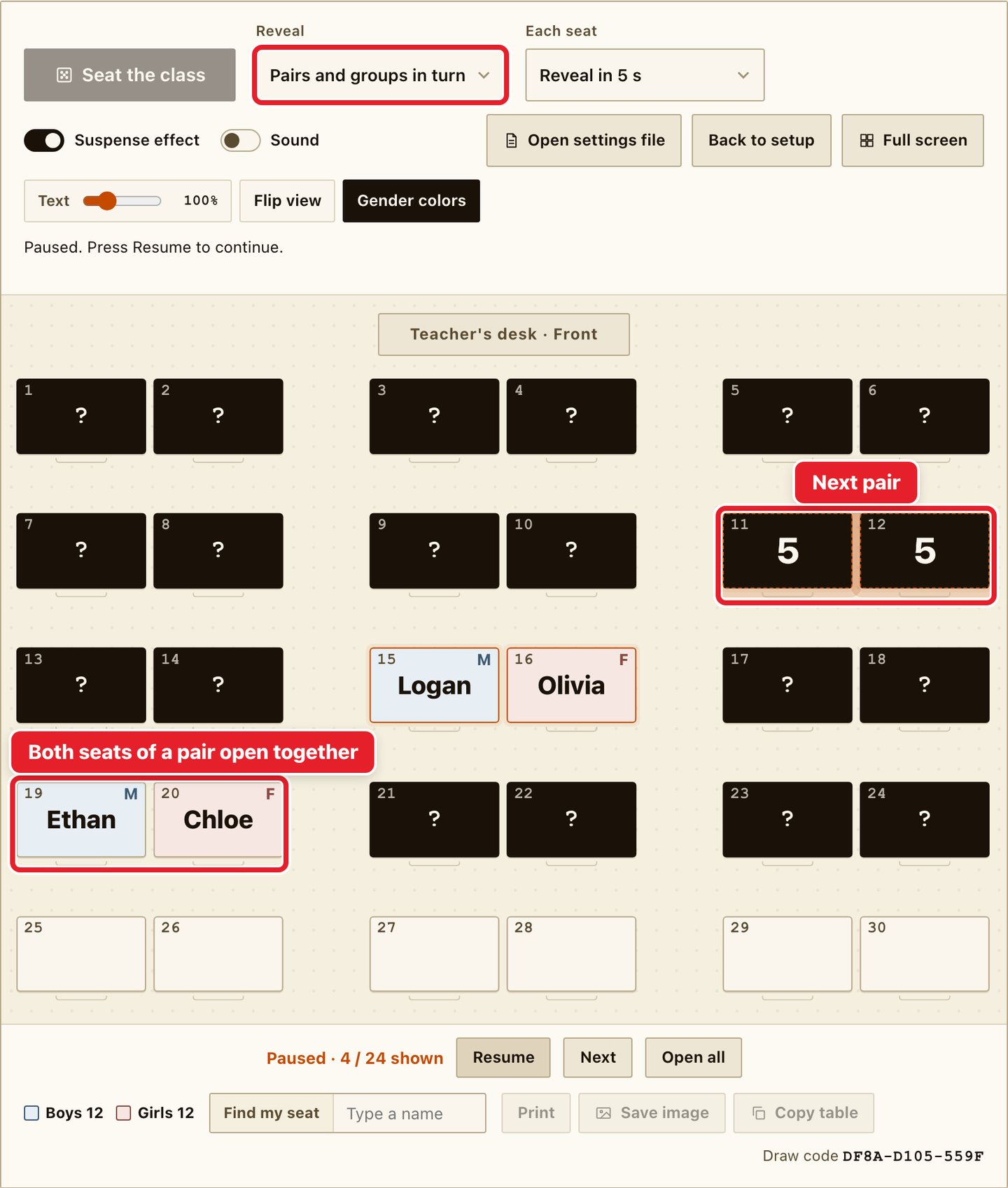
Reveal has a new option, Pairs and groups in turn. Desks that touch open together. If Gender seating is set to Boy-girl pairs, the two students of a pair are revealed at the same moment.
Clicking a desk in the setup view now opens its seat settings. The separate Fixed seat tool and the Turn seats on/off tool have moved into this panel.
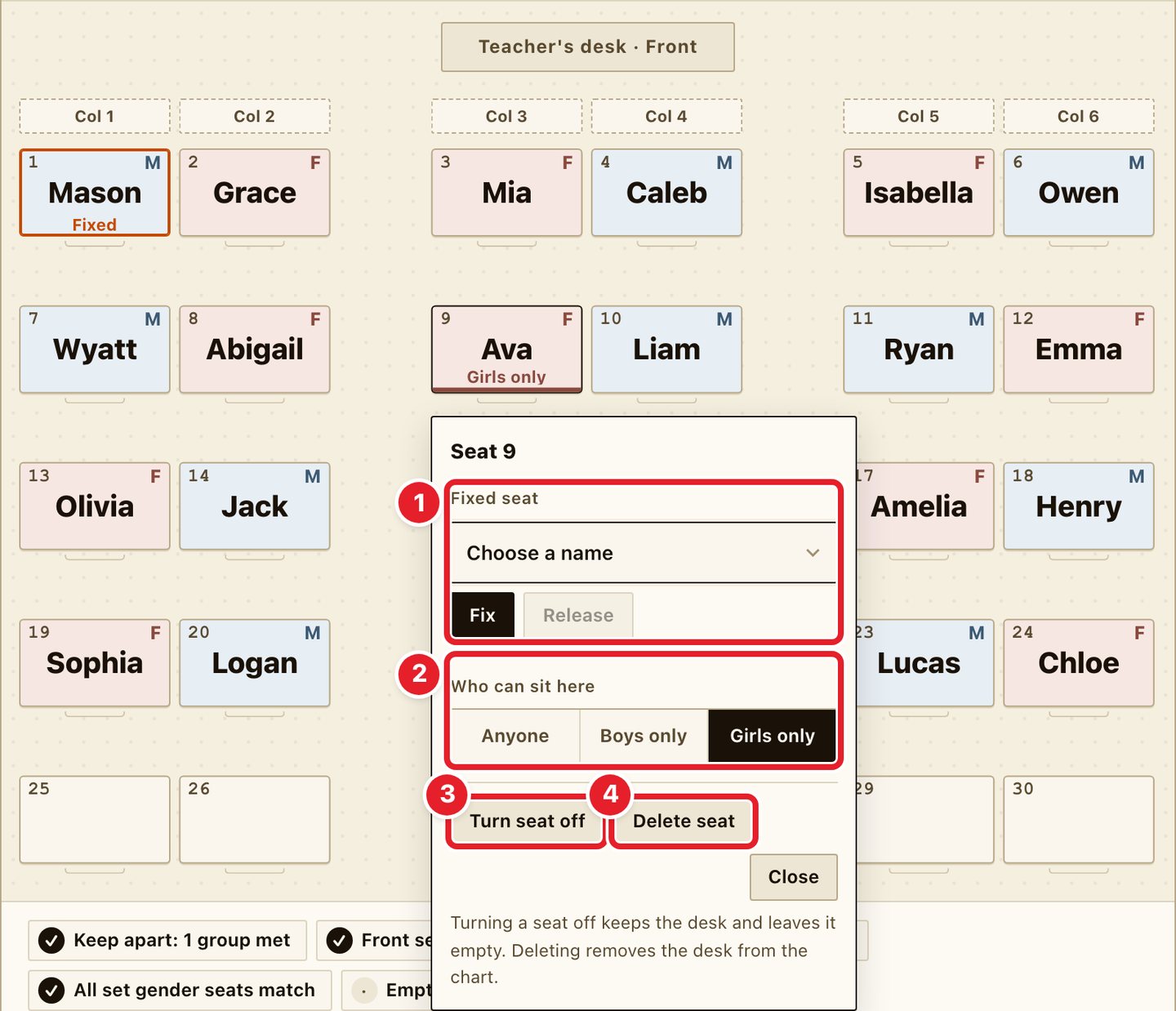
Turn seat off keeps the desk and leaves it empty. Delete seat removes the desk from the chart.
The editing row above the chart has changed too.
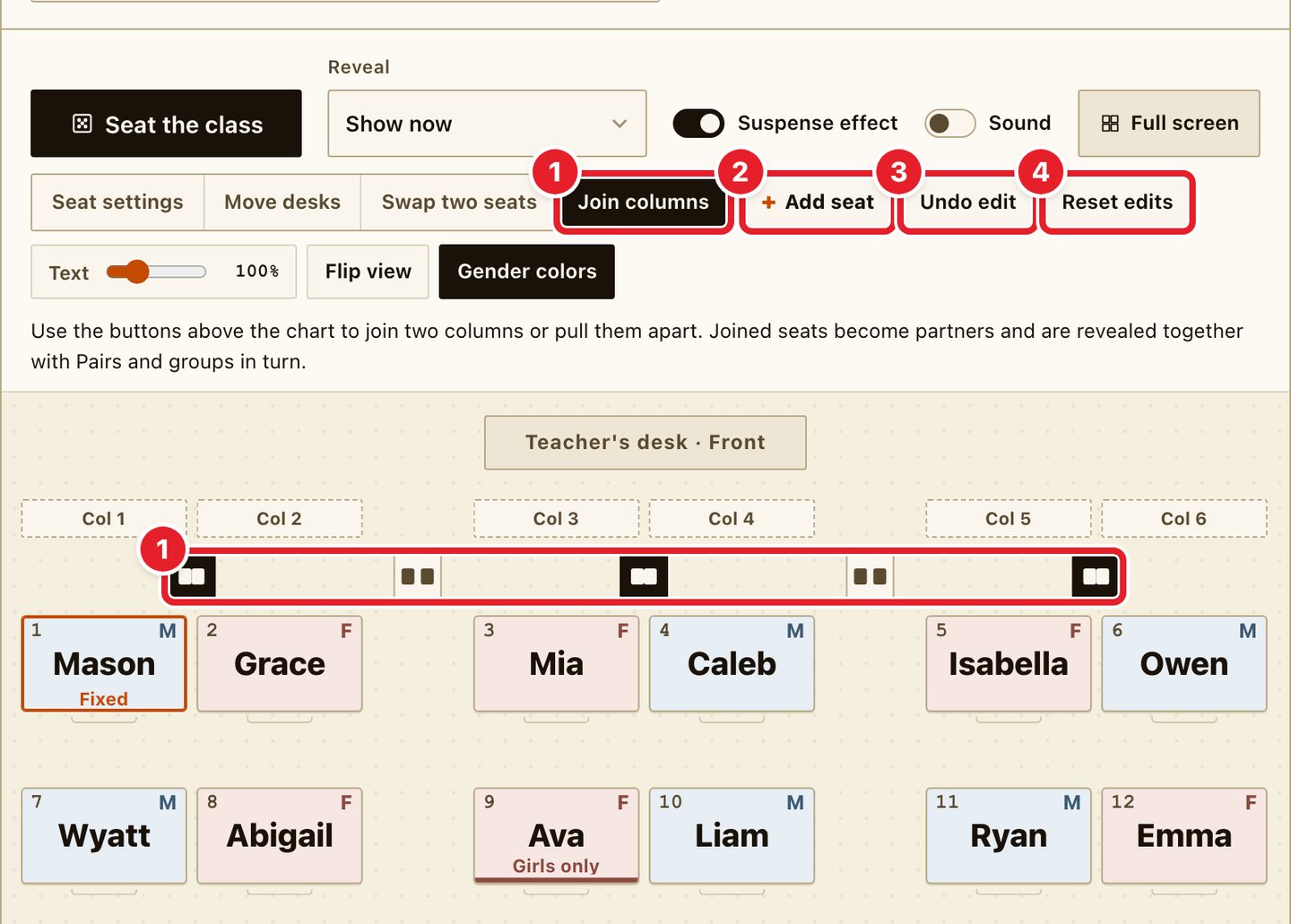
- Choose Join columns and buttons appear between the columns, above the chart. Press one to join two columns or pull them apart. Joined seats become partners and are revealed together with Pairs and groups in turn.
- Add seat adds one desk.
- Undo edit takes back desk edits one step at a time.
- Reset edits puts every desk edit back to the start. You press it twice within 4 seconds, so it does not happen by mistake, and Undo edit brings the edits back. The roster, the rules typed on the Rules tab and your saved charts stay.
The fixes from that first update stay as they were.
- Pasting a new roster no longer leaves names from the previous chart on the desks. Names that are not in the roster are removed from the chart, and if you change just one name, only that seat is renamed.
- The Save tab has a button called Erase all data and saved charts. After using a shared computer, it removes the roster, desks, rules and saved charts left in this browser. You press it twice, so nothing is erased by mistake.
Thank you for the feedback
This fix was possible because someone took the time to write to us. Thank you. If something gets in your way or you wish a feature existed, tell us on the contact page. We will start with what we can do.